
Feb 19, 2016 ● Peter Jones
10 Ultra Useful Computer Tips and Keyboard Shortcuts
Even if you haven’t spilled coffee on your trackpad, sometimes it can be a huge time-saver to use keyboard shortcuts. Remember those? Gone are the days of ALT + F4. Here are a few updated hacks for the modern world.
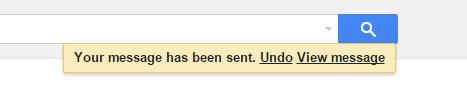 Set yourself a 5-7 second “whoopsies” window for sent messages with this handy “undo” function—for those times when you realize you forgot an attachment or spelled your boss’s name wrong. Or worse—hit “reply all.” Just follow these instructions.
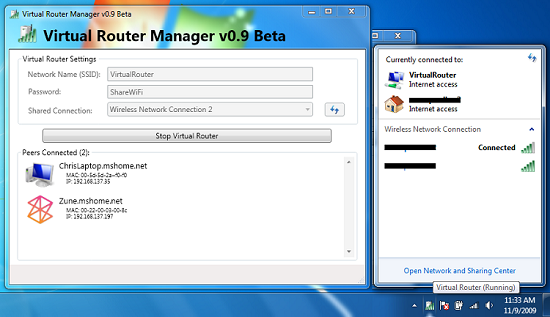 Turn your computer into your very own Wi-Fi hotspot by downloading Virtual Router. This one is a life safer if you hate getting charged a penalty fee for going over your data limit.
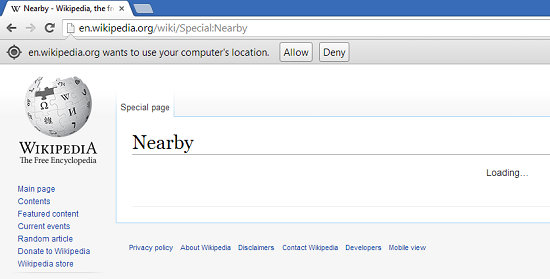 Use Wikipedia Nearby to nab articles based on your location. Be in the know! And if you like being a font of knowledge, try changing your home page to Wikipedia Random and learn something new every time you open your browser.
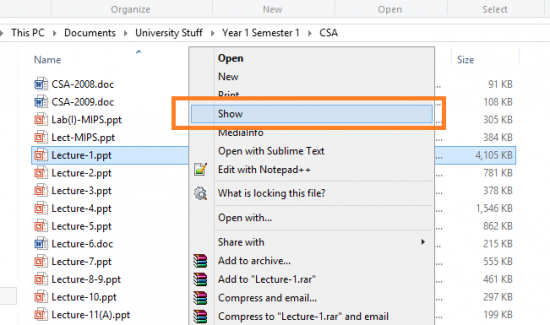 Just right click and select “Show” rather than “Open.” You’ll look a whole lot smoother in front of your boss and big clients.
1. Set your Gmail accidental “Undo” function
Set yourself a 5-7 second “whoopsies” window for sent messages with this handy “undo” function—for those times when you realize you forgot an attachment or spelled your boss’s name wrong. Or worse—hit “reply all.” Just follow these instructions.
2. Access your address bar
Just type control + L.3. Restore default size of a webpage after zooming in or out.
Press control + 0 (command + 0 on a Mac).4. Squeeze more bookmarks into your browser’s bookmarks tab
Right or control + click on each of your bookmarks, select “Edit,” and delete all text. You’ll be left with just the favicon and will have much more room for other icons.5. Supercharge your wi-fi signal
Turn your computer into your very own Wi-Fi hotspot by downloading Virtual Router. This one is a life safer if you hate getting charged a penalty fee for going over your data limit.
6. Create a portable Wikipedia
Use Wikipedia Nearby to nab articles based on your location. Be in the know! And if you like being a font of knowledge, try changing your home page to Wikipedia Random and learn something new every time you open your browser.
7. Pause a video in Youtube
Click "K." And to jump forward or back by 10 seconds, use "J" and "L," respectively. You can also use the < and > buttons to speed up or decrease speed of playback on videos.8. Open your PowerPoint directly into Presentation Mode
Just right click and select “Show” rather than “Open.” You’ll look a whole lot smoother in front of your boss and big clients.